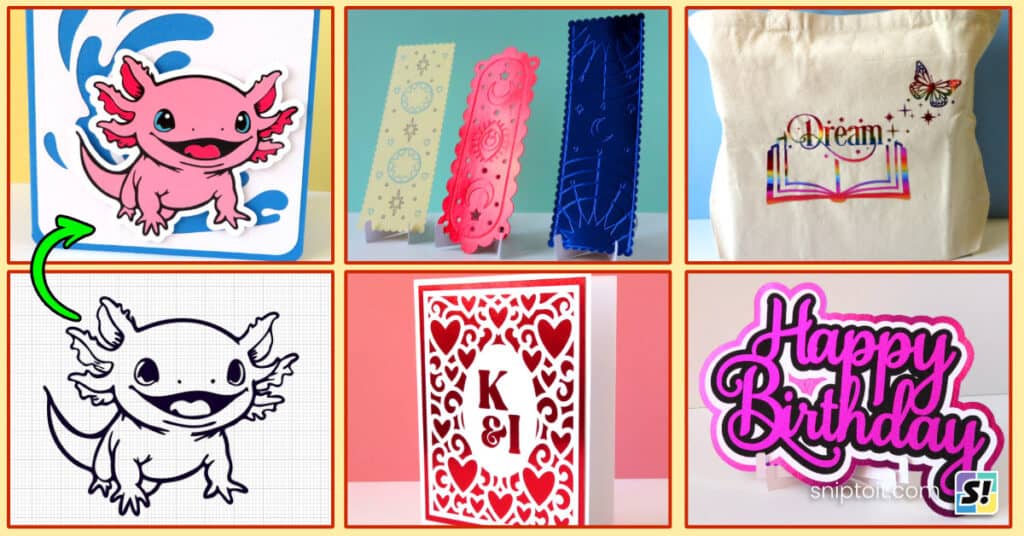
I am here to sing the praises of the humble dingbat font! These typefaces consist of pictures rather than letters/numbers, and are a great source of simple vector images for projects.
Dingbat fonts have gone way beyond the Zapf Dingbats, Wingdings and Webdings of the 80s and 90s. Designers create these image sets across a vast array of categories like nature, animals, holidays and hobbies. The single layer images in each dingbat font are perfect building blocks for projects to make with your craft cutter.
Let me guide you through how to use this under-appreciated resource for your crafting delight!
Why I love dingbat fonts for my Cricut projects
- Free/low cost option for thousands of graphics. Wide variety of vectors available without subscription
- Each dingbat font is its own mini bundle of related images
- Dingbat fonts get installed on your computer once, making the entire image set available in Design Space right away. Much easier than individually uploading SVGs
Best sites for dingbat fonts
Almost all popular font sites will have a dingbat category. The most helpful sites will offer theme categories to help you browse.
Here are my favorite dingbat sites:
- Dafont.com – this is where I start when looking for dingbats. Huge selection of dingbat fonts (over 3300) organized in 21 useful categories. Good category level organization, but poor search function (i.e. can’t search by style, just font names). Also, this site is not mobile friendly.
- Fontspace.com – slightly smaller collection of dingbats (~2200), but the site is mobile friendly and you can browse categories and narrow results with suggested tags.
- Creative Fabrica – If you are a subscriber to Creative Fabrica (which I am, it’s less than $4 per month) you have access to over 4000 dingbat fonts across a huge number of categories for every occasion, style and season. Being a subscriber means that you have a commercial license for these images.
How to install any font (including dingbats)
Any dingbat font you select must be downloaded and installed on your computer before you can use it in design software like Design Space, Silhouette Studio or Inkscape.
How to install a font in Windows
- Find the dingbat font you like and click download
- Save the file (usually .ZIP format) to your Downloads folder
- Right click the ZIP folder, select “Extract file”
- Font file is either .TTF or .OTF format. Both work in Design Space
- Right click the font file and select “Install”
How to install a font in Mac OS
- Find the dingbat font you like and click download
- Save the file (usually .ZIP format) to your Downloads folder
- Double click the ZIP folder to unzip
- Font file is either .TTF or .OTF format. Both work in Design Space
- Double click the font file
- Font will open in FontBook (default font software for Mac)
- Click the install button on the font preview window
Using Dingbat Fonts in Cricut Design Space
After you have your dingbat font installed, you can use it like any other text in Design Space. Add a text block to the canvas, type some text and change the font in the edit bar under the System fonts tab.
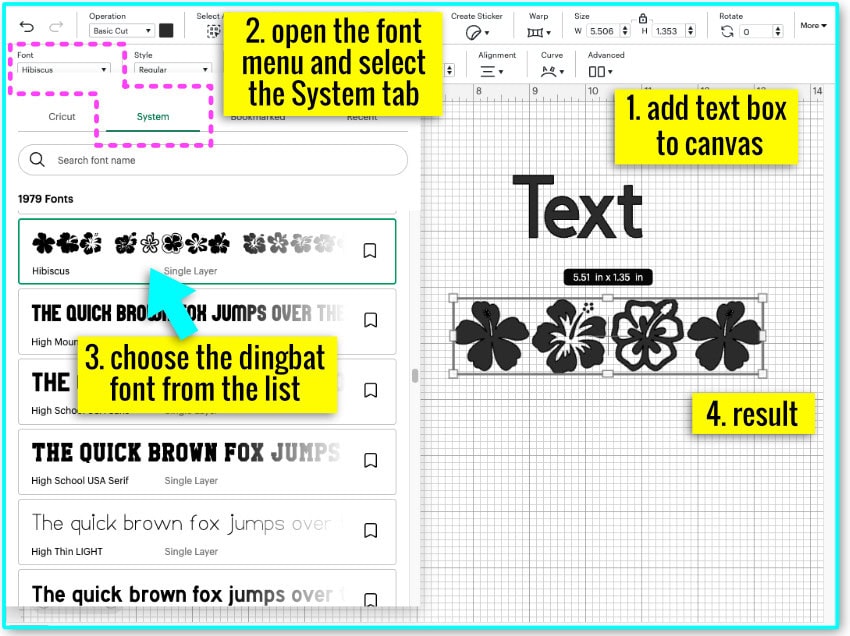
If you are unsure of using fonts in Design Space, take a quick detour to our Design Space basics tutorial and familiarize yourself with how to add and edit text.
How to find the right dingbat character
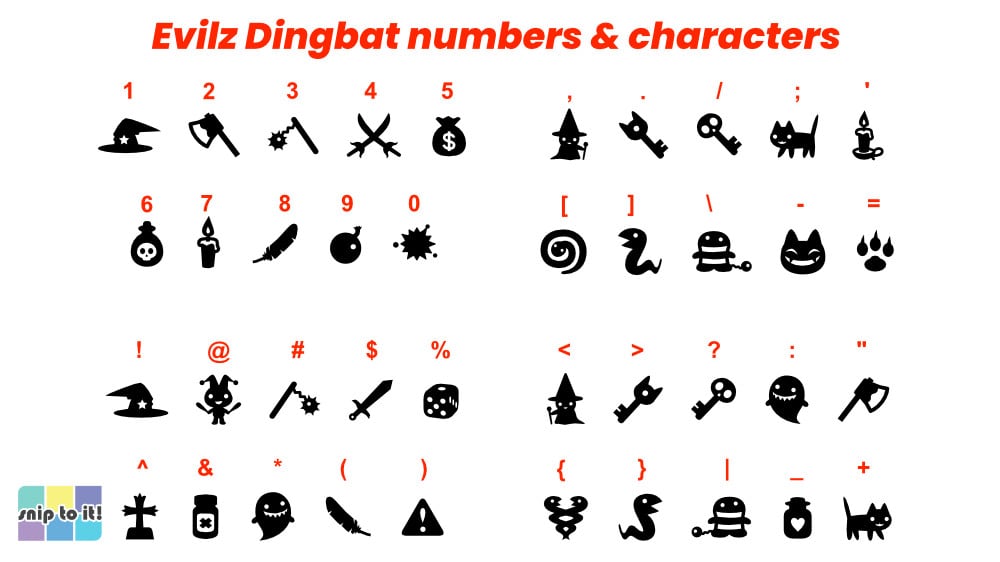
Each image of a dingbat font will correspond to a keyboard character (letter, number or symbol).
You can find specific dingbats by using the character map. As an example, this is the character map for the dingbat font Evilz:

3 ways to access the character map for a dingbat font, depending on your computer:
- From the web: Go to the website where you downloaded the font and go to its font page. Look for a link labelled Character Map. On Dafont, it’s easy, the entire map is displayed by default for every font. Look at all the characters and see what letter/number corresponds.

2. From a Mac computer: Open Fontbook (the font management software for MacOS) and open the dingbat font. There are 2 sections, preview and repertoire. You’ll see all of the characters laid out in a grid in both sections.
Scroll to the repertoire section and click the dingbat image you want to use. A small window will open and you’ll be given the option to copy the character. Click copy, then go to Design Space and paste the character into a text box.

3. From a Windows computer: Click the Windows start button at the bottom of your screen. Search for ‘Character map‘ and open the app.
Select the dingbat font from the pulldown menu, and click any character to select it, then press the copy button. In Design Space, open a text box, change the font to the dingbat font and type/paste the letter in the box.

In my opinion, the character previews are small and too hard to see, and you can’t even increase the size of the character map window. Thanks for nothing, Microsoft! I avoid using this option in Windows.
Using dingbats as images in your designs
Think of dingbats as single layer images. Once you have your dingbat image on the canvas, you can edit the color, re-size, and slice/combine/flatten it in conjunction with other shapes and images. You can also use the Offset tool, Contour tool, Warp tool and Sticker Maker functions.

If you find yourself unable to perform an edit function with a dingbat character in DS, convert it to a shape using Offset. Select the character, open the Offset tool, and set the offset value to 0 (zero).

This will create an exact copy of the character that is a shape, not a text character. This is useful if you want to use the Contour tool to turn the graphic into a multi-layer, multi-color image.

Not all dingbats are created equal
There are tons of dingbat fonts out there that are amazing for Cricut projects – simple vectors that cut cleanly at any size. However, some dingbat fonts consist of vectorized bitmap images that might be unsuitable to cut with a crafting machine.
For example, here’s a dingbat image of Harry Potter (Harry Potter and the Dingbats font). While this dingbat font can be imported into cutting software, that was likely never the intended usage, and your cutting result will probably be unsatisfactory.

Project Ideas for Dingbat Graphics
I encourage you to use dingbat fonts for paper, vinyl, or HTV projects – they make great cut files! I have used dingbats for tons of projects, including some that I’ve featured right here on Snip to It:
Many stickers I’ve designed started as dingbat characters. Check out my huge collection of 3D Halloween stickers:

Bat dingbats from Evilz font, used in a kid’s shirt from our warped text Halloween t-shirt article:

Bunny dingbats from Bunny Easter, used in an insert card in our Easy Insert cards for Easter article

Reindeer dingbat from Winter Icons font, warped text holiday shirts article:

Coffee cup dingbat, adapted from Coffee Icons font, also from the warped text holiday shirts article. Notice how easily you can add extra elements to dingbats (I added a heart):

Snowflake dingbats, also from Winter Icons font, from our glitter HTV holiday pillows article:

Pay attention to copyright and licenses
If you are making projects for yourself, friends or family, like holiday cards or gifts, it’s fine to use any dingbat font licensed for personal use. There are lots of dingbat fonts that are also free for commercial use; just check the license that comes with the font.
However, many dingbat fonts contain characters that infringe on copyright and trademark. For example, it’s easy to find a dingbat font containing Disney characters. The font author may make the font 100% free, but they can’t grant permission to use those trademarked characters.
In short, use common sense!
Before you go…
Thanks for reading our guide to using dingbat fonts! If you would like to learn more about the very best sites for free fonts, or how to use decorative fonts to make trendy stacked wavy text images, check out these articles: